
Pixel dimensions and file size solve different problems
A 1,600 × 1,600 image describes a canvas containing 2.56 million pixels. A 300 KB limit describes the encoded file's weight. Meeting one requirement does not automatically meet the other: two equally sized JPGs can have very different byte counts.
Before exporting, check the destination's accepted format, required dimensions and maximum bytes. PicFitly counts 1 KB as 1,000 bytes, so its default 300 KB target means at most 300,000 bytes per successful JPG. The ZIP's combined size is a separate matter.
This guide explains a preparation workflow. It is not a current specification table for marketplaces. Check your store, campaign or client's own requirements before choosing a preset.
Fit on a canvas without cutting off the product
Fitting keeps the whole source image and its proportions inside a canvas. Cropping removes content to fill a shape. Listing Pack fits images; it does not crop them into a square or stretch a portrait sideways.
The default padding reserves 8% of each canvas edge before the image is fitted inside. Added space uses your selected background color. Existing background pixels stay in the image: choosing white does not remove a photographed gray backdrop.
Enlargement is off by default. A small original can therefore occupy less of a large canvas than you expect. Turn enlargement on only when that tradeoff suits the delivery; it increases displayed size without recovering missing detail. Inspect edges and lettering before sharing.
Example: one 640 × 800 source, two JPG canvases
These files were exported with the Catalog preset, default padding, white background, a 300 KB target and enlargement off. The source is a generated photographic sample used to demonstrate the tool, not an original product photograph or a real seller case study.
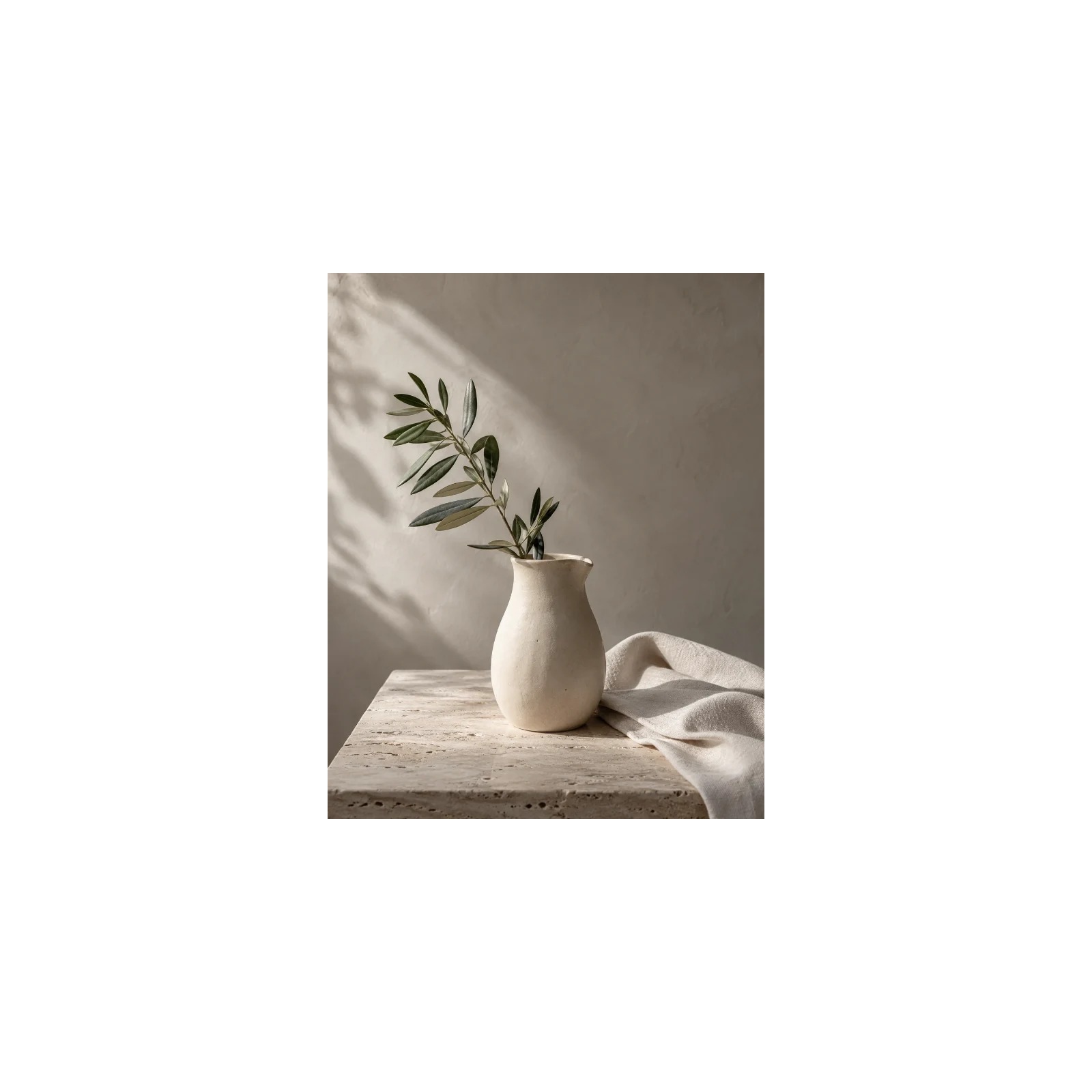
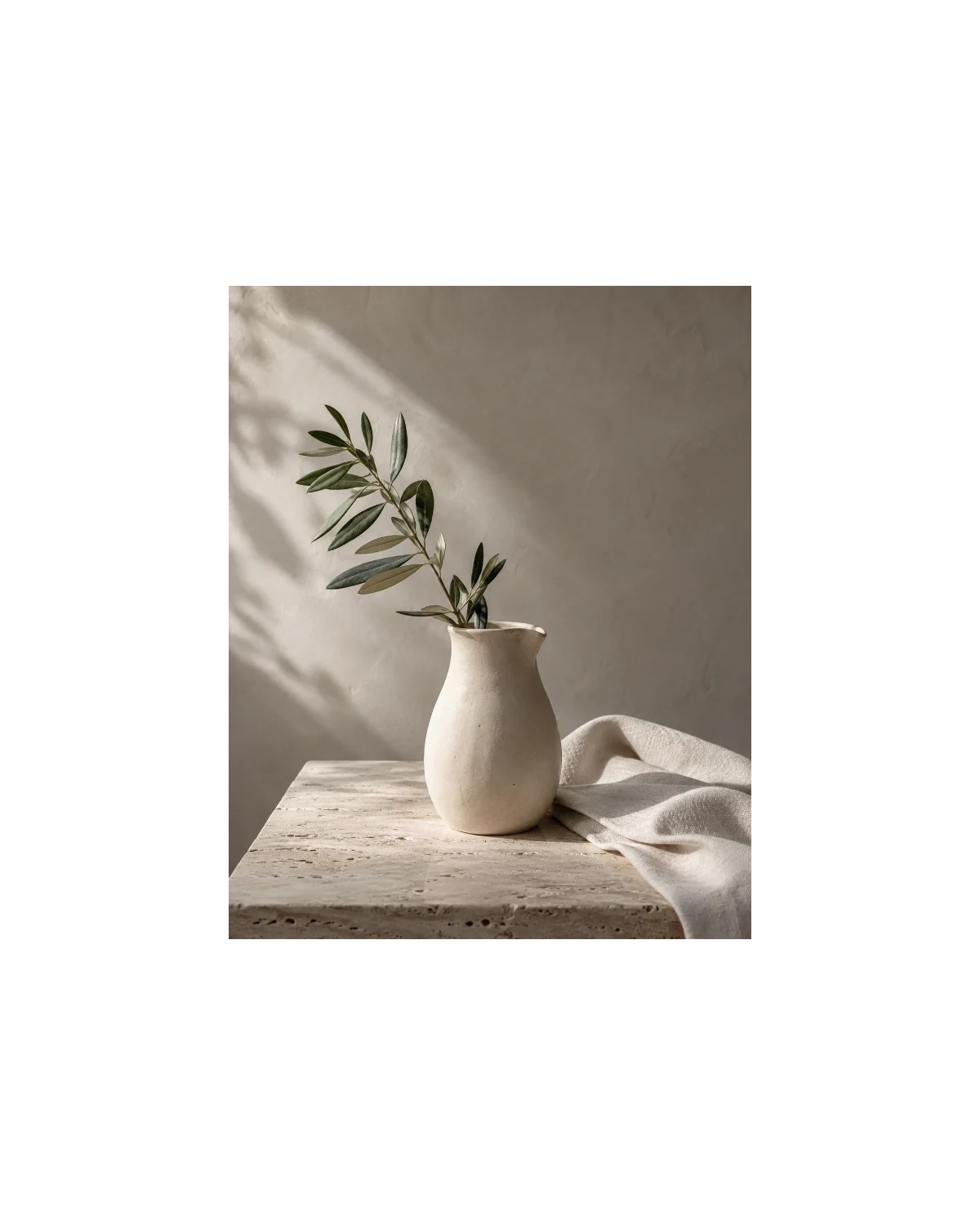
The surrounding space is intentional: the 640 × 800 source was not enlarged. Your own file sizes and appearance will vary with the source image, background and settings.
Export two sizes from each photo in one batch
- Open free Listing Pack and choose up to five JPG, PNG or WebP originals.
- Choose Catalog for 1,600 × 1,600 and 1,200 × 1,500 exports, or Web for 1,000 × 1,000 and 1,200 × 800 exports.
- Set a filename prefix, padding, background and KB target. Generate and inspect the results.
- Download the ZIP containing successful JPGs and a CSV checklist. Five successful sources produce ten JPGs plus the checklist.
Save the settings as a JSON recipe when you want to repeat a delivery. Importing that recipe restores the settings; it does not restore source images or previous downloads. Use How to use PicFitly for the wider tool workflow.
Check the handoff before uploading
- Preview: check the whole product, padding, small text and any enlargement warning.
- Inspect the CSV: compare output dimensions, byte counts, status and notes. Failed variants do not become successful images just because a ZIP downloads.
- Confirm names: ordered filenames help organize a batch; the tool does not match products to SKUs.
- Keep originals: download before leaving the page. Processing stays in your browser; there is no saved server copy to retrieve later.
If quality adjustment cannot meet your target, Listing Pack reports the failure instead of silently reducing canvas dimensions. Increase the allowed KB or choose a smaller appropriate preset, then regenerate.
Common questions
Does a square canvas make my product look square?
No. The source keeps its proportions. Background space fills the remaining canvas.
Can Listing Pack remove the background?
No. It adds canvas space and fills transparent areas for JPG export; existing backgrounds remain.
Are the presets certified for my marketplace?
No. Presets are convenient export sizes, with no platform acceptance guarantee.
Can I use it free without signing in?
Yes. The current free workspace accepts five source images per batch and requires no account.